Stop retyping your best messages.
Quick Reply holds two kinds of message: the ones you send constantly, and the ones you got right. Save either and it is a tap away in any chat — a clipboard that remembers, so the careful reply you wrote at 11pm is still there in March.
And you don’t have to write them. AI Writer asks you what the message needs — who it is for, what happened, what you want back — and drafts it on your iPhone. A shortcut can do the same unattended. Everything you save works on all four networks from an ordinary personal account, with no business or professional upgrade.
What is Quick Reply
Quick Reply is a message template that you frequently send. It can include media, files and voice — and even an interactive button message. You can make it personalised with the use of variables. Tap a row to open it.
All of it goes into a single saved reply — text and attachments together, not one or the other, and every attachment carries its own caption.
| What it holds | Detail |
|---|---|
| Plain text | Up to 2,000 characters |
| Rich text formatting | Bold, italic, strikethrough, monospace, links |
| Variables | In message text and in media captions |
| Images, GIFs, videos | Any mix, each with its own caption |
| Audio and voice notes | Saved and re-sent as recorded |
| Documents (PDF, etc.) | Not accepted on Instagram |
| Up to 10 attachments | 25 MB per file, in one reply |
| Interactive button message | WhatsApp only — see below |
On every network: a saved reply sends to WhatsApp, Telegram, Instagram and Messenger, and text, attachments and variables all work on all four. Two exceptions: Instagram takes images, video and audio but not documents, and interactive buttons are WhatsApp only.
A button reply sends a real WhatsApp interactive message — otherwise a Cloud API product, which the WhatsApp app gives you no way to write at all. Saved once here, sent from your ordinary personal account. Tap any pointer to take one apart.


WhatsApp only, and only from a chat — the surfaces that cannot render one are in the questions below.
Write “Hi {recipientFirstName}, thanks for reaching out” once and every recipient reads their own name. Variables resolve at send time, in message text and in media captions, and no native saved reply on any of the four networks can hold one.
| Variable | Resolves to |
|---|---|
| {recipientName} | Full name of the recipient |
| {recipientFirstName} | First name only |
| {currentDate} | Today's date at send time |
| {currentTime} | Current time at send time |
| {recipientPhone} | Recipient's phone number |
| {businessName} | Your business name (set in Settings) |
| {birthdayNames} | Whoever is celebrating today, joined naturally for your language — Quick Reply only |
Contact-specific variables ({recipientName}, {recipientFirstName}, {recipientPhone}, {businessName}) work with individual recipients only — in a group chat you pick which participant they resolve against. AI Reply Assistant validates variables before sending and warns you if any cannot be resolved. {birthdayNames} is the one variable Quick Reply has and scheduled messages do not — it fills in whoever is celebrating today, joined naturally for your language. See the Birthdays chapter.
Create Quick Reply
The reason most people never build a library is that a good saved reply takes effort to write, and a blank field is where that effort stalls. Two of the five routes below hand that job to Apple Intelligence. All five open the same editor and produce the same kind of reply — tap one to see how it goes.
Quick Reply library ▸ AI Generation
Tap AI Generation in your library to open AI Writer. You are not handed a blank prompt box — you pick the occasion and it asks you for what that kind of message actually needs. A sales follow-up wants to know what was discussed and what happens next; a quote wants the scope and the price; a win-back wants how long it has been and why. Answer the questions, and Apple Intelligence drafts it on your iPhone.
That framework is most of the value. The five business presets — follow-up, quote, win-back, review request, apology — are the messages worth getting right once and keeping, which is exactly what a Quick Reply is for. Refine the draft in plain language, then save it into your library.
21 presets across Speeches, Posts, and Business messages — with a full walkthrough.
Shortcuts ▸ Generate Quick Reply
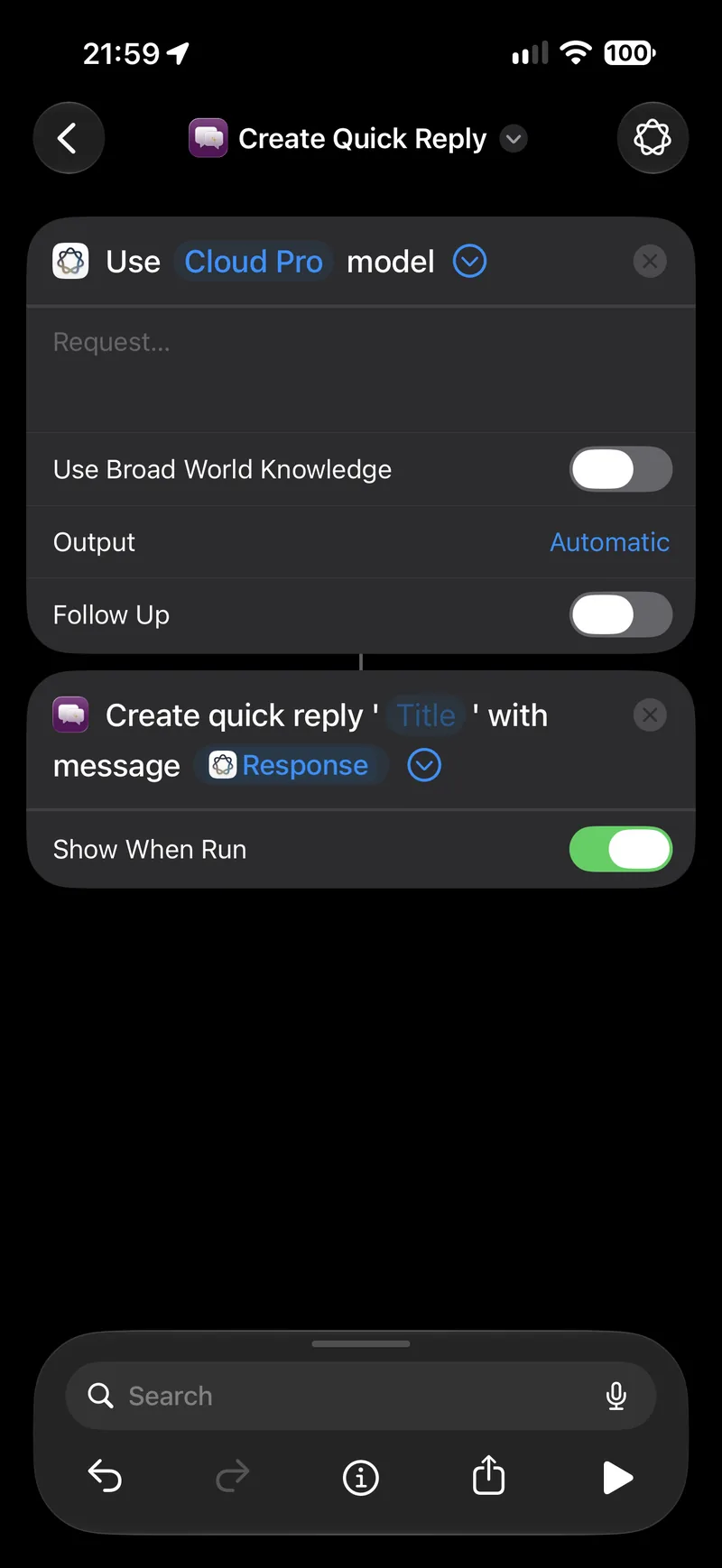
The Generate Quick Reply template chains Apple Intelligence straight into Create Quick Reply — so a saved reply can be drafted and filed without you typing any of it. Because it is a shortcut, the drafting step can take its input from anything earlier in the chain, and the whole thing can run on a schedule.
Create Quick Reply also works on its own, without the drafting step in front of it, and it is the Siri AI phrase — “Create a quick reply.”

Long-press any message ▸ Add Quick Reply
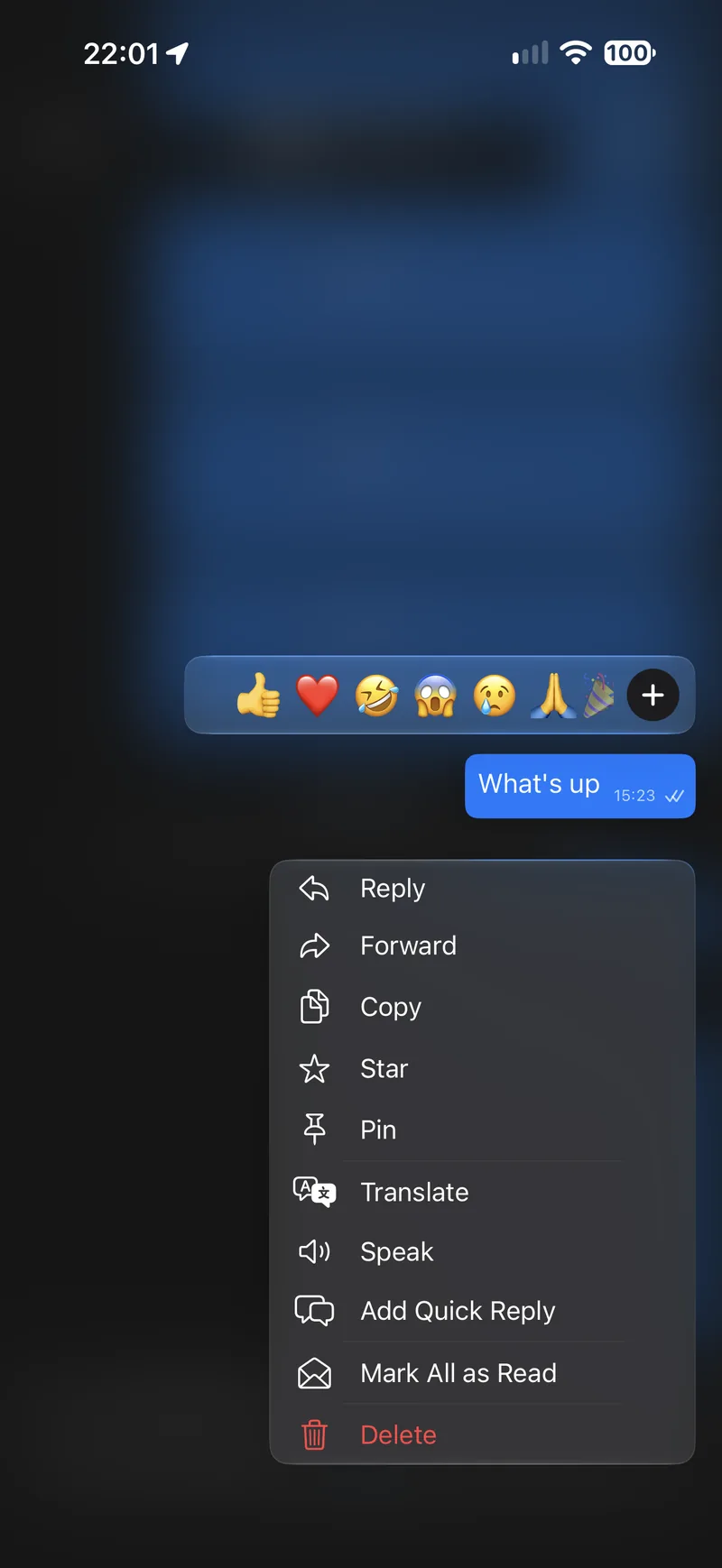
Often the reply worth keeping is one you have already written. Long-press any message and choose Add Quick Reply — the editor opens with that message in it, ready to title and tag. Offered on text messages and Meta AI answers, in every conversation except Status.
WhatsApp Business and Telegram Business
Existing WhatsApp Business quick replies and Telegram Business quick reply shortcuts import and become ordinary saved replies in your library, media and captions included. Each keeps a stable link back to its source, so renaming a shortcut on the native side updates the same reply rather than creating a second one, and running the import again is safe. A Telegram shortcut holding several messages splits into one reply each.
Stickers are the exception. A Telegram shortcut holding one has that message skipped and everything else brought across.
Neither app can read the other’s saved replies, and neither offers an export of any kind.
Quick Reply library ▸ +
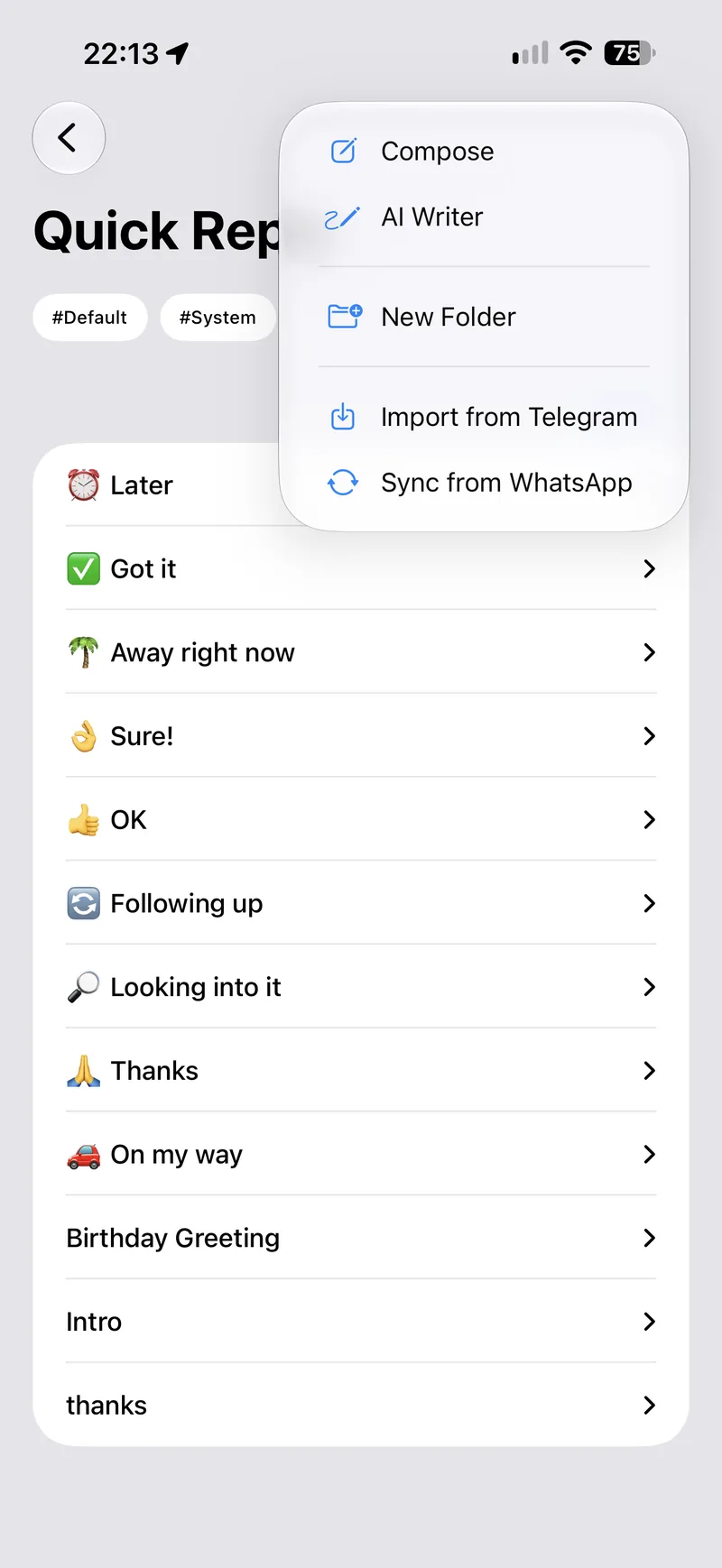
The full editor: title, message, rich text formatting, variables, attachments, a folder, tags and an emoji icon — or switch it at the top to a button reply. Step through the two screens below, or jump to either one.
Step 1 of 2: Open your Quick Reply library
Hi {recipientFirstName}, you’re confirmed for {currentDate}. See you then!
Group related replies into folders, add tags for the labels that cut across them, and star the ones you reach for most. Each reply takes an emoji icon and a colour, so a long library stays scannable, and any reply can be disabled rather than deleted — it drops out of the / autocomplete and the widget, and comes back the moment you switch it on again.
Sending Quick Reply
Four surfaces send a saved reply, and they are not equivalent — a chat resolves everything, a widget tap sends on its own, CarPlay puts that tap on the dash, and a shortcut carries the whole reply, attachments included. Tap one to see it.
Type / for autocomplete, or tap + and choose Quick Reply
Type / in the message input and your saved replies appear as autocomplete suggestions — or tap the + attachment menu and choose Quick Reply. Pick one and it drops into the field with its variables already resolved against whoever you are talking to, ready to read over and send.
The one exception is a Telegram bot’s private chat, where typing / shows the bot’s own commands instead; use the + menu there.
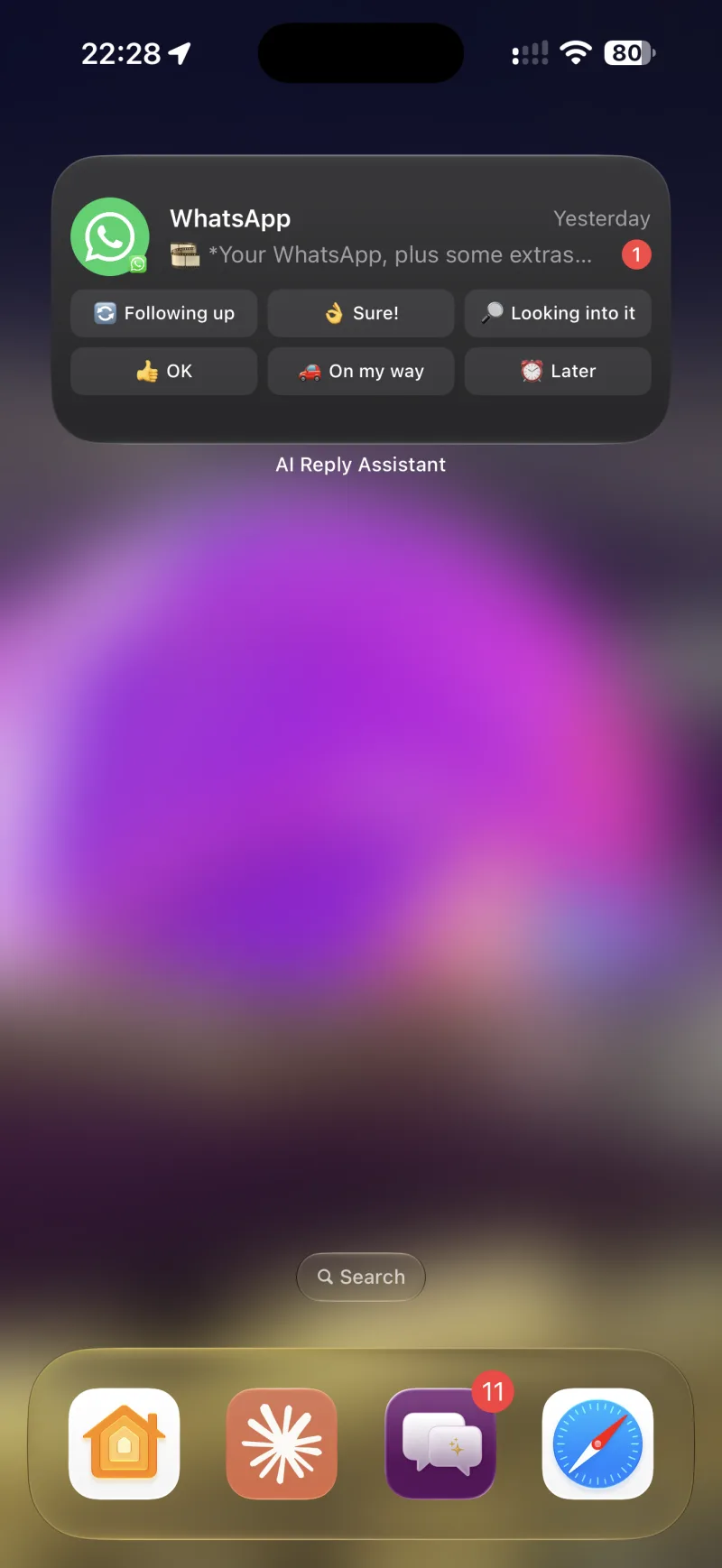
Small holds 4 replies, medium holds 6, pointed at one conversation
Long-press the widget to point it at a conversation — a specific one, or whichever you messaged most recently — and to pick which saved replies it shows. The small widget holds four, the medium holds six. It refreshes every 30 minutes, or whenever your library changes.
Tapping a tile opens AI Reply Assistant on that conversation and sends the reply — variables resolved, attachments attached — with nothing further to confirm. It is not a background send: the app opens to do it, because a send has to obey everything a typed one does, from a disappearing-message timer to Telegram’s paid-message hold. There is no Control Center control for Quick Reply.
Two replies arrive rather than send. A group reply whose text names a recipient — {recipientFirstName} and the rest — opens the participant picker first, because which member it refers to is a question only you can answer. And if you are part-way through editing a message, the reply waits in the composer instead, rather than overwriting the edit you had open.
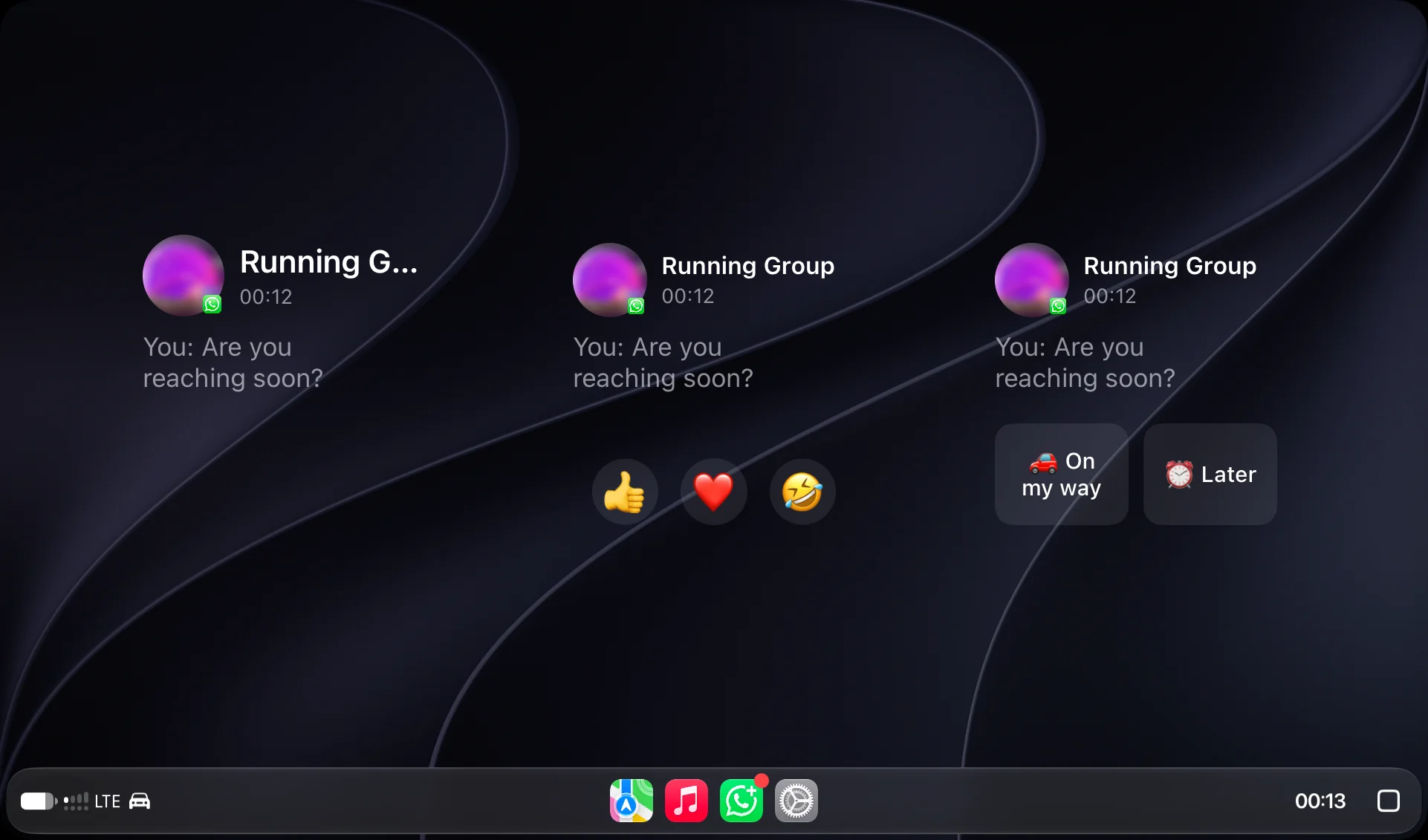
The same widgets on the car screen, where one tap is the whole interaction
Nothing here was built for CarPlay. The car screen draws the same small widgets the Home Screen does, so a widget you have already pointed at a conversation turns up on the dash carrying the replies you picked for it — a conversation, a row of reactions and a pair of saved replies, side by side.
A tap is the whole interaction. The app still takes it — a widget send is never a background send — but it resolves the reply and sends it without asking you for anything, so there is nothing waiting on your phone afterwards. A reaction is simpler still: it goes to the conversation’s latest message and never stops at all.
Keep group variables off the dash. Which member a group reply’s {recipientFirstName} refers to is a question only you can answer, so a reply like that stops and asks — a phone interaction, and the wrong thing to meet at a junction. Point the widget you drive with at a one-to-one chat, where the only recipient is the person you are already talking to, or at group replies that name nobody.
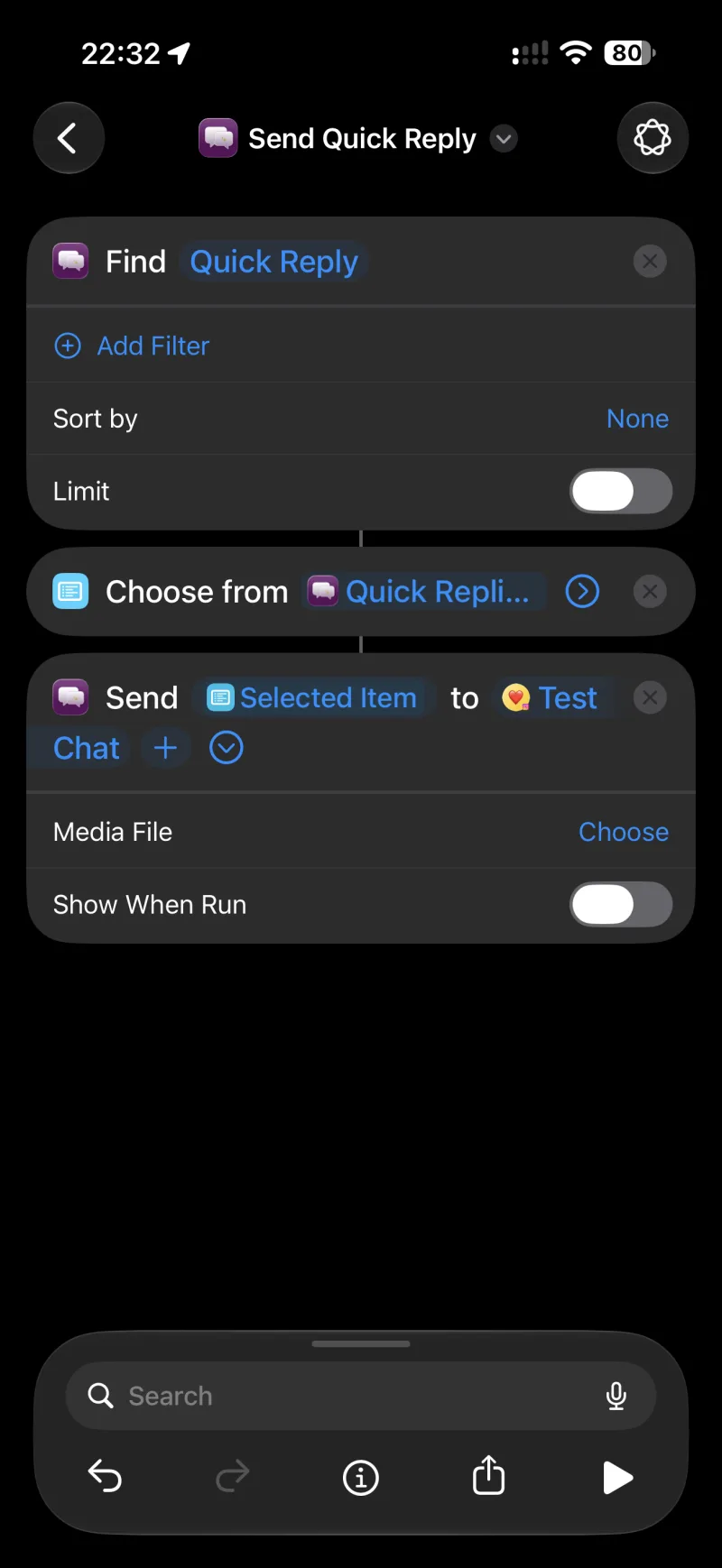
Find Quick Reply, chained into Send Media Message or a Send action
Find Quick Reply reads your library back to a shortcut — filter by title, content or enabled state, sort it, limit it, and hand the result to whatever comes next. Chain it into Send Message and a saved reply goes out without you opening the app. For a reply that carries files, Get Media from Quick Reply lifts its photos, videos and documents out as files for Send Media Message. Chain Find into Create Schedule Message and every reply tagged for this week becomes a Monday-morning send. No native messaging app exposes its saved replies to Shortcuts at all, and none of them return a value a shortcut can act on. Full action list in the Shortcuts chapter.
Send the files to Send Media Message, not Send Message. Send Message has no file field, so Shortcuts coerces each file to the only thing a text field can take — its filename — and the recipient receives “photo-54E5B572….jpg” as a message. Send Media Message is the action that accepts files, and photos, videos and documents make that trip unchanged.
What a file cannot carry. The reply’s own text and each attachment’s caption stay behind, and a voice note arrives as a plain audio file rather than a voice message — a file is bytes and a filename, with no way to say what it was. Voice notes are rare on a saved reply, so this is a documented limit rather than a gap being worked on: record-and-send stays a job for a chat or the widget.
Variables do not resolve on this route. A variable is filled in by the surface that knows who the message is going to — a chat, the widget, or the scheduler. Send Message takes the text exactly as it is handed over, so a reply holding {recipientFirstName} arrives with the token still in it. Send those from a chat, or pass them to Create Schedule Message, which resolves them per recipient at send time and refuses to send rather than deliver an unresolved one.
Button replies stay in the app. A shortcut receives a reply’s title, message, tags and enabled state — not a button reply’s buttons. One hands over its body alone, so chaining it into Send Message sends a plain text message, and it holds no attachments for Get Media from Quick Reply to find. Send Button Message is the action that carries buttons, composed in the shortcut rather than pulled from your library.
Quick Reply — common questions
No. Stickers cannot be added to a reply in the editor, and a Telegram Business shortcut carrying one has that message skipped on import. Everything else — text, photos, video, audio, documents and their captions — saves and sends.
No — it lives on this iPhone. WhatsApp and Telegram sync their own saved replies to Web and Desktop; yours are on-device, which is also the reason nothing about them ever leaves the phone.
As many as you like — there is no cap on saving. On the free plan the 5 most recently used stay active and insertable; the rest are locked rather than deleted, and unlock again the moment you subscribe. No paid plan has a limit.
| Limit | Value |
|---|---|
| Characters per reply | 2,000 (warning at 1,800) |
| Media attachments per reply | Up to 10 |
| File size per attachment | 25 MB |
| Button message body | 1,024 characters (WhatsApp’s limit) |
| Buttons per message | 1 to 3, labels up to 20 characters |
| Button message footer | 60 characters |
| Active replies on the free plan | 5 most recently used · unlimited on any paid plan |
| Widget refresh interval | Every 30 minutes, or when the library changes |
Your personal AI assistant for messaging.
Download AI Reply Assistant on iOS and try it free.